Photo Filters and Adjustments for Instagram
Give your photos the look you want with PanoCut. Apply a filter for a quick style change, or fine-tune the image with manual controls for brightness, contrast, saturation, exposure, hue, and temperature. Adjust your photos before sharing them on Instagram or using them in a carousel.
Explore Photo Filters and Presets
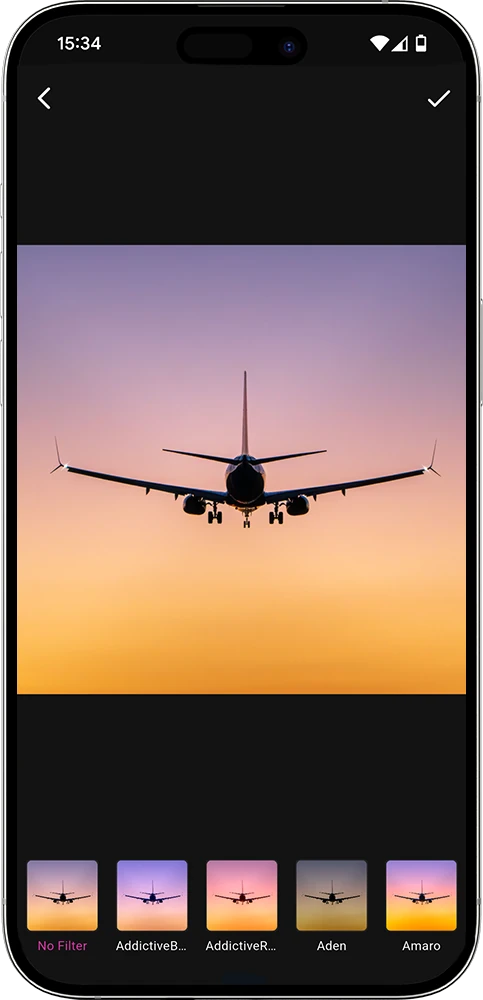
Want to change the mood of a photo quickly? Browse PanoCut's available filter presets and compare different looks. A filter applies a coordinated visual treatment to your image, helping you explore different styles without adjusting every setting individually.
Find a Style That Fits Your Photo
Different photos can benefit from different treatments. Try an available preset, compare its preview with the original image, and choose the look that best fits your subject and the style you want to create.
Filters can be a useful starting point for your editing workflow. You can also keep the original look when it already works well. The best choice depends on the photo and the result you want.
Fine-Tune Your Photos with Manual Adjustments
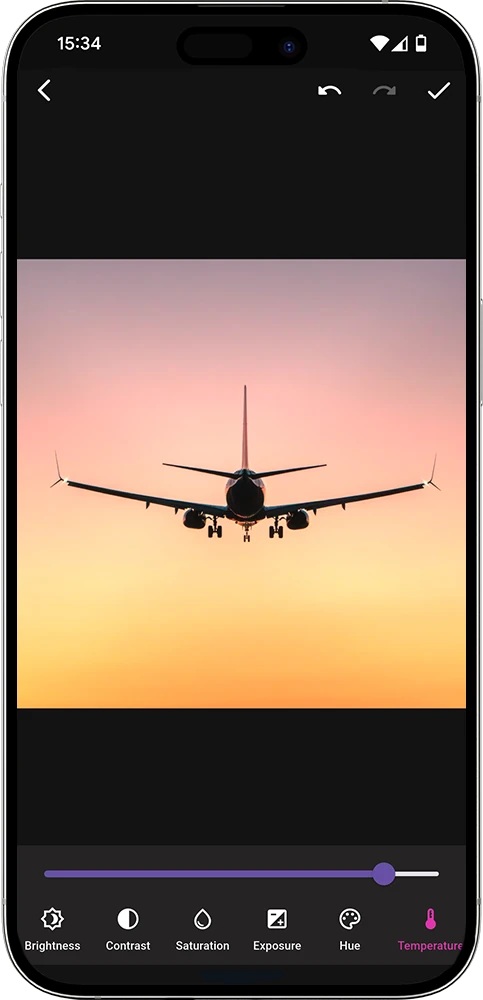
Every photo has its own lighting, colors, and atmosphere. PanoCut's adjustment tools let you fine-tune these details instead of relying on a preset alone. Make small changes and preview the result as you work toward the look you want.
Control the Look of Your Image
- Brightness: Make an image lighter or darker.
- Contrast: Adjust the difference between lighter and darker areas.
- Saturation: Make colors more vivid or more subtle.
- Exposure: Fine-tune the overall exposure of your photo.
- Hue: Adjust the overall color tone.
- Temperature: Give your photo a warmer or cooler color balance.
Use filters and manual adjustments together when needed. A preset can help you find a starting look, while individual controls give you more flexibility to fine-tune the final image.
How to Apply Filters and Adjust a Photo in PanoCut
- Open your photo. Choose the image you want to edit in PanoCut.
- Explore the filters. Open the filter selection screen and preview the available presets.
- Fine-tune the image. Use the adjustment controls to change brightness, contrast, saturation, exposure, hue, or temperature.
- Review your changes. Compare the edited image with the original and check that the result matches your intended look.
- Prepare your photo for sharing. Continue editing or use the finished image in your Instagram content workflow.
Tips for Better Photo Editing
- Make small adjustments first, then increase them gradually if needed.
- Check that skin tones and important details still look natural.
- Compare filter presets before choosing one for your image.
- Use contrast and saturation thoughtfully so colors do not become overpowering.
- Review the full image before saving or sharing it.
Frequently Asked Questions
What is the difference between photo filters and adjustments?
A filter applies a preset visual treatment to change the overall appearance of a photo. Manual adjustments let you fine-tune specific properties such as brightness, contrast, saturation, exposure, hue, and temperature.
Can I adjust brightness and colors after applying a filter?
You can use the available filter and adjustment tools as part of your editing workflow. The exact order and available controls depend on the version of PanoCut you are using.
Are filters suitable for Instagram photos?
Filters and manual adjustments can help you prepare photos for Instagram posts and carousels. Choose settings that suit your original image and the style you want to achieve.
Explore More PanoCut Tools
Filters and adjustments are one part of preparing images for social media. Discover more ways to enhance and edit your photos with PanoCut's other tools.
Explore PanoCut's AI photo enhancement tools