AI Object Remover for Photos
Unwanted people or objects in the background can distract from the subject of your photo. PanoCut's AI Object Remover helps you clean up images by selecting the area you want to remove and letting AI fill the space with a generated background.
Use it to tidy up travel photos, landscape images, selfies, and panoramas before sharing them or preparing them for an Instagram carousel.
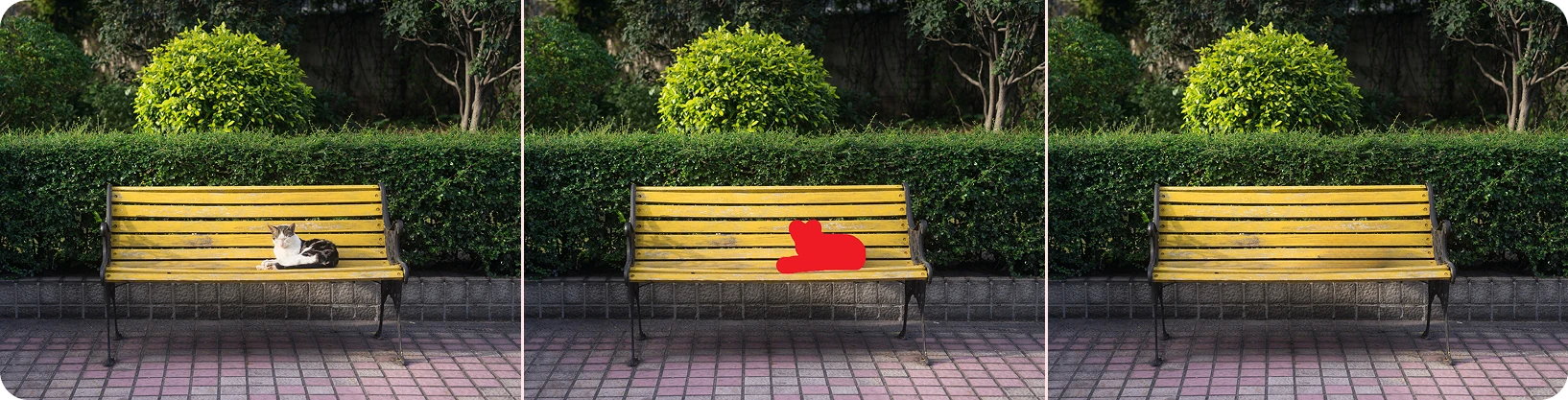
What Is an AI Object Remover?
An AI object remover helps erase selected elements from a photo and generate content to fill the removed area. Instead of leaving an empty patch, the tool attempts to create a background that blends with the surrounding image.
PanoCut's Remove Object tool uses a simple brush selection to mark the area you want to remove. Review the result carefully, since the quality of the fill depends on the original image and the details around the selected area.
What Can PanoCut AI Object Remover Do?
- Remove unwanted objects: Select distracting elements in a photo and remove them from the composition.
- Remove people from the background: Clean up suitable photos when passersby or crowds take attention away from the main subject.
- Clean up signs and other distractions: Remove selected background details that you do not want in the final image.
- Fill the selected area with AI: Generate background content intended to blend with the surrounding photo.
- Prepare panoramas for carousel posts: Remove distractions before using PanoCut's carousel cutter to split a wide photo into slides.
When Should You Remove Objects from a Photo?
Object removal can be useful when a small distraction changes the feel of an otherwise good photo. Here are some situations where it may help:
- Travel photos: Reduce distractions from people or objects in the background.
- Landscape photos: Remove selected signs or other unwanted elements that draw attention away from the scenery.
- Selfies and portraits: Clean up distracting background details while keeping the focus on the person.
- Panoramic photos: Tidy up the image before splitting it into multiple carousel slides.
- Social media content: Prepare a cleaner composition for Instagram posts and carousels.
How to Remove an Object with PanoCut
- Open your photo. Choose the image you want to edit in PanoCut.
- Select the Remove Object tool. Open the object-removal feature in the editor.
- Brush over the unwanted area. Select the object or person you want to remove.
- Apply the AI removal. Let the tool generate content for the selected area.
- Review the result. Check the filled area and its edges to make sure the result looks consistent with the rest of the image.
- Continue editing or prepare your photo for sharing. When you are satisfied with the result, continue editing or use PanoCut's carousel cutter if you are preparing a panorama.
Tips for Better Object Removal Results
- Select the unwanted area carefully: Try to cover the element you want removed without including too much of the surrounding image.
- Check the generated background: Inspect edges, patterns, and nearby objects for visible artifacts or inconsistencies.
- Start with a clear original photo: The surrounding image gives the AI context for generating the fill.
- Review complex backgrounds: Detailed textures, overlapping objects, and complicated patterns can be harder to reconstruct naturally.
- Keep the original: Save or retain your original image so you can compare the result or try a different edit if needed.
Frequently Asked Questions
What does an AI object remover do?
An AI object remover lets you select an unwanted part of a photo, remove it, and generate background content for the selected area. Results vary according to the image and the complexity of the background.
Can I remove people from a photo with PanoCut?
PanoCut's Remove Object tool can be used to select people or other distracting elements in a photo. Review the generated area afterward, particularly when the background is detailed or crowded.
Will the background always look natural?
Not always. AI attempts to fill the selected area to match the surrounding image, but complex textures, shadows, or overlapping details may produce visible inconsistencies. Check the result before sharing it.
Can I remove objects before creating an Instagram carousel?
Yes. You can clean up a photo before splitting a panorama or wide image into carousel slides. Review the image first, then continue with the carousel-cutting workflow.
Explore More PanoCut Photo Tools
Object removal is one way to prepare photos for social media. Explore other PanoCut tools for enhancing, expanding, and creatively editing your images.
Explore all PanoCut AI image tools